A “No Signal” message is usually a connection or display-handshake problem, not proof that the console is dead. The safest troubleshooting sequence starts with things that do not change system software.
Verify the television input
Use the TV remote to select the exact HDMI port where the console cable is connected. If the TV has HDMI 1, 2 and 3, moving the cable without changing the selected source will still show No Signal.
Confirm power separately from video
Look for the console power indicator and use the supplied or specified power source. A USB port on a television may not always provide the same current as the intended adapter, especially during startup.
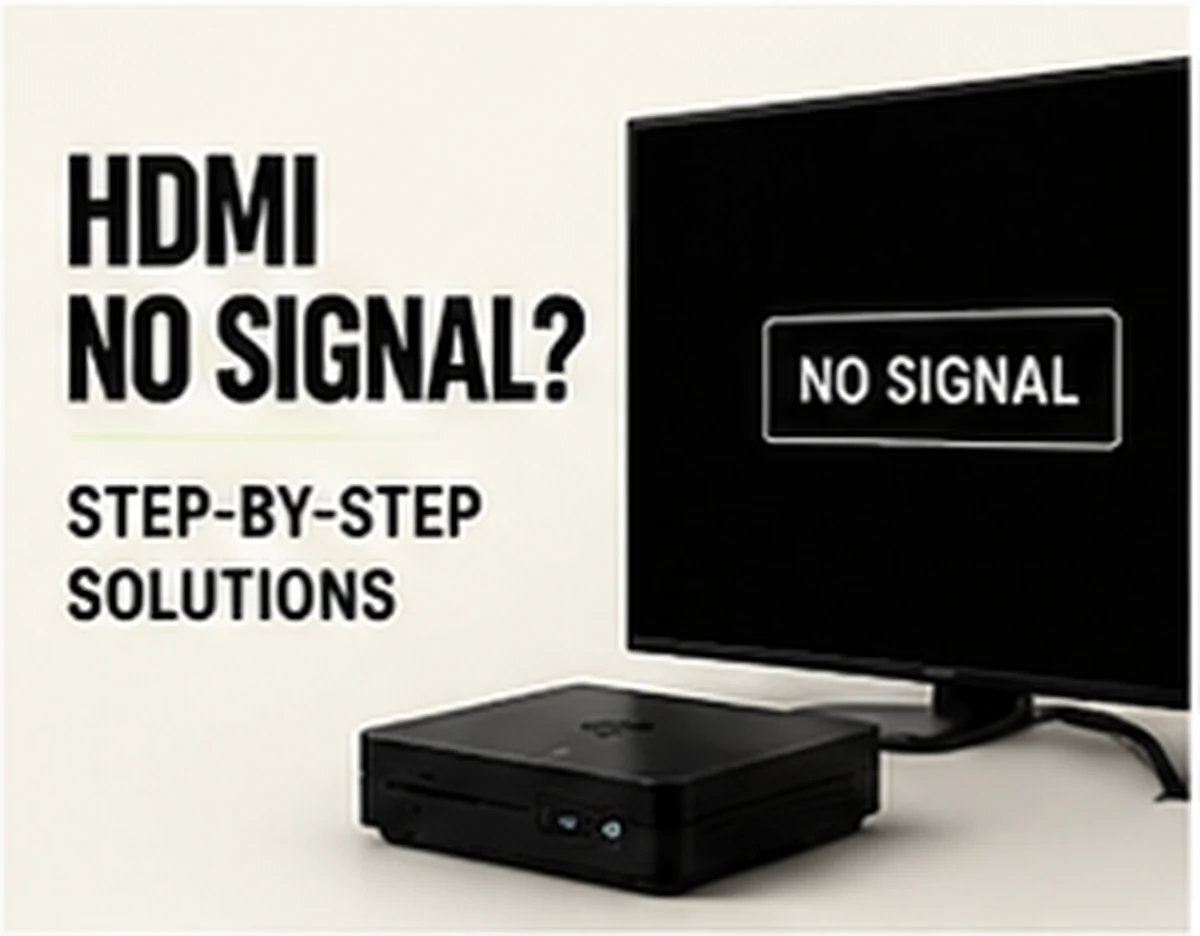
Reseat or swap the HDMI cable
Unplug and reconnect both ends. If possible, test a known-good HDMI cable and a second TV input. This quickly eliminates two common physical failure points.
Power-cycle in a clean order
Turn the console off, turn the television on, select the correct HDMI input, then power the console. Some displays negotiate more reliably when the input is already active.
Do not factory-reset before simple checks
A factory reset can erase settings or saves and often does not solve a physical HDMI issue. Use reset procedures only after cable, port, power and display tests have failed and you have the correct backup instructions.
Compare setup styles in our Retro Gaming Guides, or check the live G11 Pro product page for current storage, price and verified box contents.


