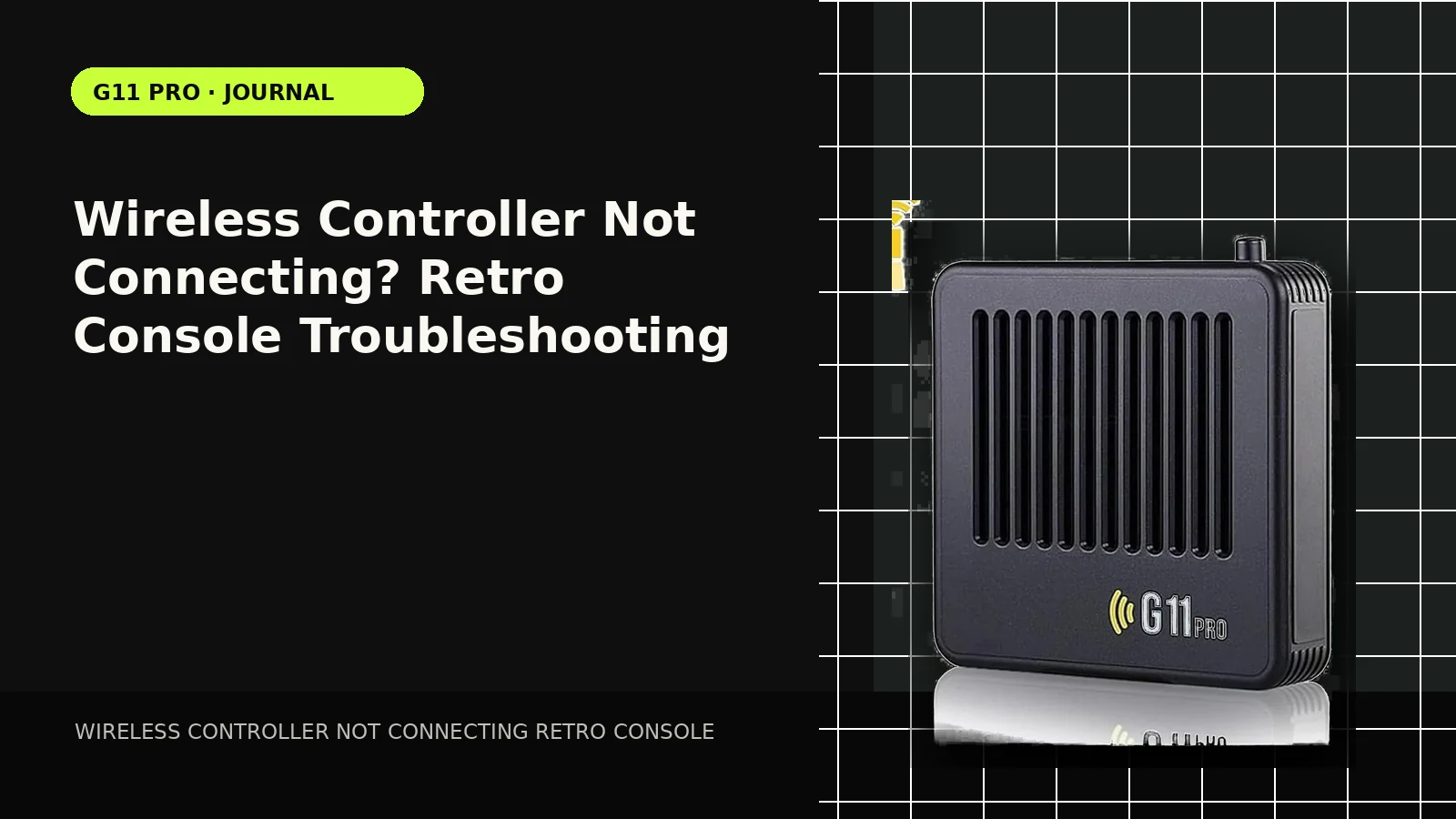
A controller that does nothing can make the whole console look broken even when the video output is fine. Work from the physical connection outward: batteries or charge, receiver, USB port, pairing state, then player assignment.
Confirm the controller has power
Replace or recharge the batteries and check any power switch or indicator light. A weak battery can sometimes light an LED without maintaining a stable connection.
Find the correct receiver
Many 2.4GHz controllers require their included USB receiver. Make sure the receiver is inserted fully and belongs to that controller set. A similar-looking dongle from another device may not pair.
Try the other USB port
If the console has multiple USB ports, move the receiver and reboot. This separates a port problem from a controller problem. Do not force a connector that does not fit cleanly.
Reset pairing in the documented order
Some controllers pair automatically at boot; others require a Home, Start or pairing-button sequence. Follow the instructions for the exact controller revision because button combinations can differ by supplier batch.
Check player assignment inside a game
A controller can navigate the menu but still be assigned incorrectly for a two-player game. If one controller works in the interface, open the system’s controller/player settings before assuming the second pad is defective.
Compare setup styles in our Retro Gaming Guides, or check the live G11 Pro product page for current storage, price and verified box contents.